Intext Term Macro
TIP
To use the Glossary Intext Term feature, add the Add term from Glossary macro to your Confluence page.
info
This macro allows you to highlight and define specific glossary terms directly within the text of your page.
Macro Settings
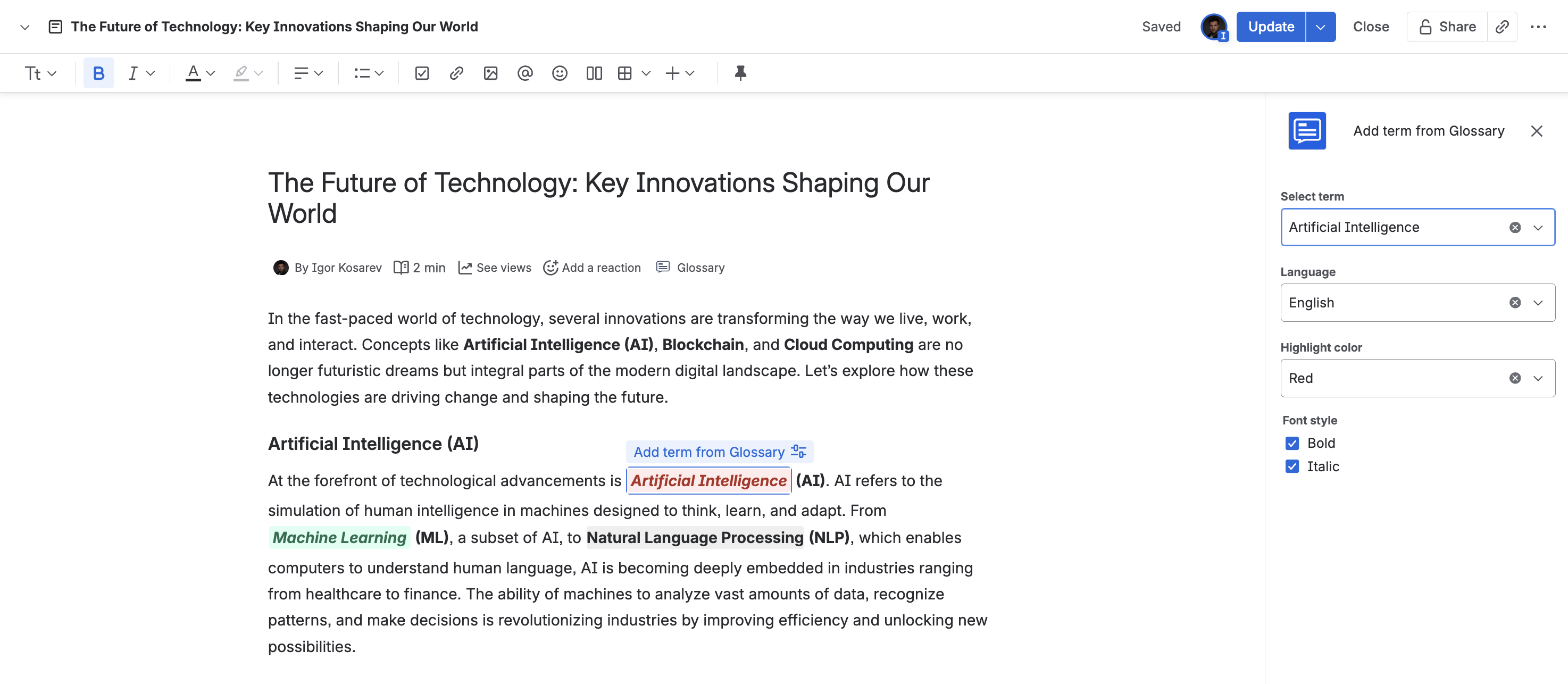
When you add the macro, a configuration panel will appear where you can customize the settings for the term you want to insert:
- Select Term: Choose the specific glossary term you want to use from the “Select term” dropdown menu. The term will be displayed in the language set as the "Main language" in the Space settings.
- Language: Select the language for the glossary term from the dropdown menu labeled "Language".
- Highlight Color: Choose a color for highlighting the selected term in the text. This can be done via the "Highlight color" dropdown menu.
- Font Style: Optionally apply additional styles such as:
- Bold
- Italic
You can enable these styles by selecting the corresponding checkboxes.
Usage
When the page loads, the macro shows the selected term in the chosen language. Clicking the term now opens a popup with its definition and an option to switch languages, helping users understand it without leaving the page.