Term Highlight Block
To use the Term Highlight Block feature, add the Term Highlight Block macro to your Confluence page.
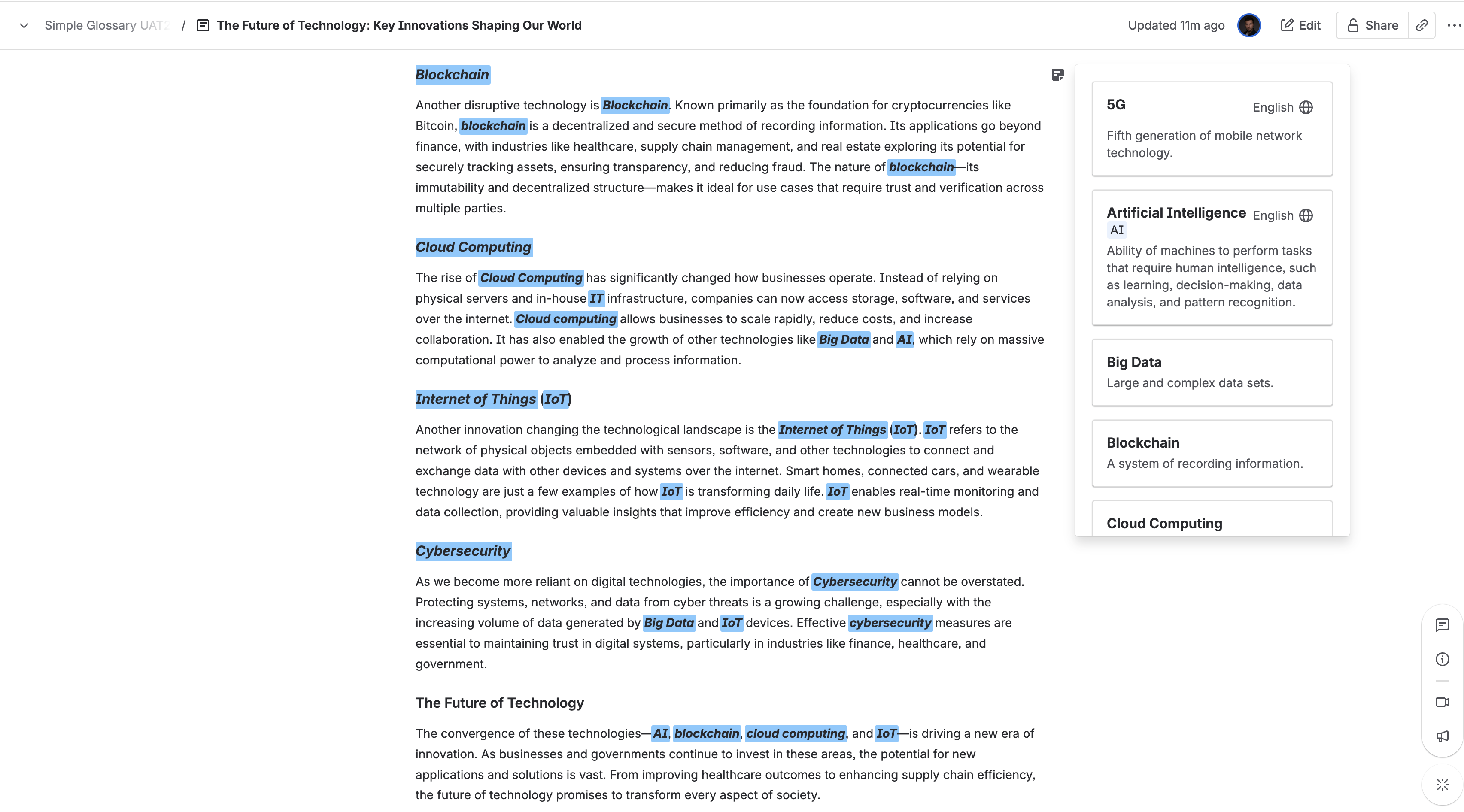
This macro automatically highlights glossary terms directly within the text you place inside it, making it easy for readers to see defined concepts right in context on your Confluence page.
Macro Settings
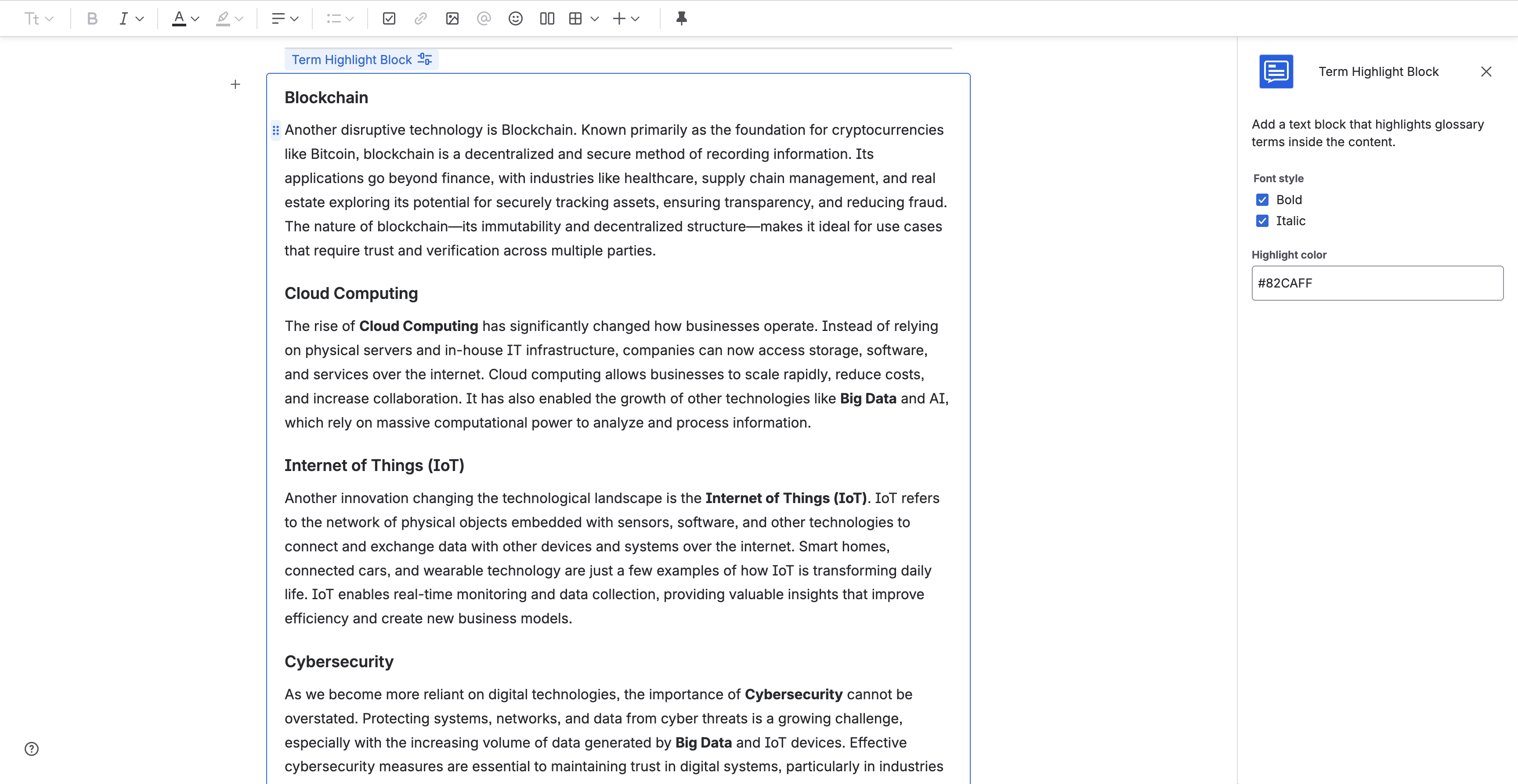
When you add the macro, a configuration panel will appear where you can customize the settings for the term you want to insert:
- Font Style: Optionally apply additional styles such as:
- Bold
- Italic
- Highlight color: Enter a color value in the text field. The input is pre‑filled with a default value, and you can provide any valid CSS color (e.g., a HEX code like
#fedec8).
Usage
Write or paste the text you want to be highlighted inside the block. The macro will scan only the text placed here and highlight any glossary terms it finds.
The block supports regular text only — do not place other macros or embedded extensions inside it.
When the page loads, the macro extracts the plain text from its body, looks up matching glossary entries, and highlights every occurrence inline according to your macro settings (bold/italic and highlight color).
Next to the block, you’ll see a small action button. Click it to open a side popup that lists all matched terms for this block. Each item shows the term details in "Main language" specified in Space settings. If a term has multiple languages, you can switch between them directly in the popup.