Global page
TIP
The Global glossary page is located in the navigation under the APPS section.
info
To create and edit Global terms you must have Global terms editor permissions.
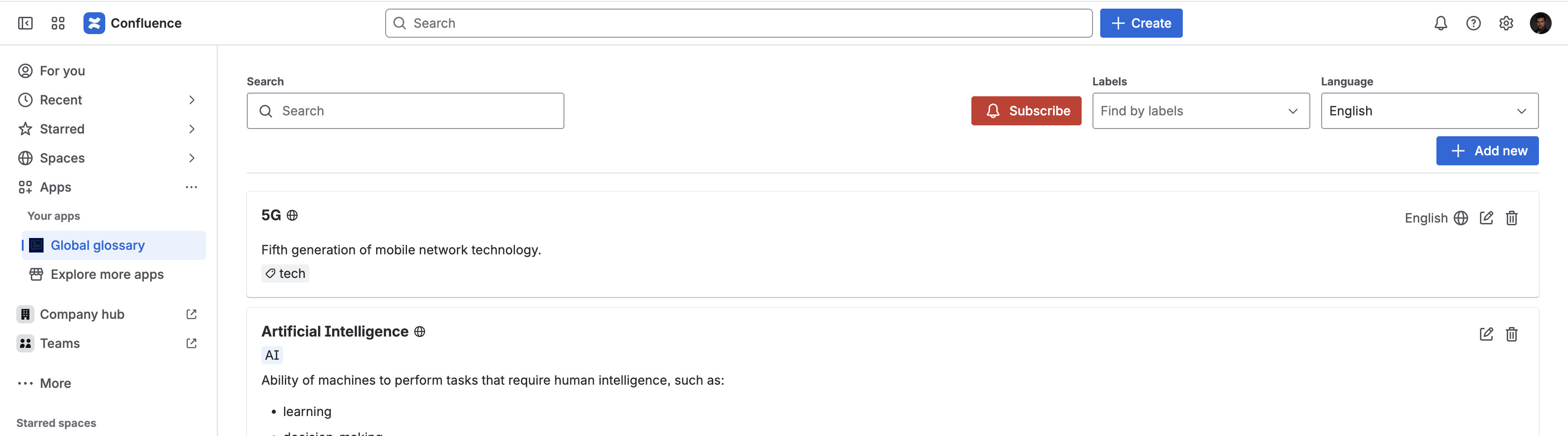
Glossary consists of two sections:
- Control Panel - contains primary elements for filtering and managing the glossary.
- Terms list - displays the glossary entries.
Control Panel
The control panel is located at the top of the screen and contains three primary elements for filtering and managing the glossary:
- Search Field - a text input where users can enter keywords to search for specific glossary terms.
- Subscribe Button - manage subscription to this Glossary for current user. More about Glossary Subscriptions.
- Labels Field - a dropdown input that allows users to filter terms based on associated labels.
- Language - a dropdown labeled "Language," which displays the currently selected language (e.g., "English") and allows users to switch between different language options for the glossary.
If the user has Global Editor permissions for Global Glossary, the control panel features one action button:
- Add New - allows users to add new glossary terms.
Terms list
The terms list displays the glossary entries as specific terms cards:
- Term Title - displayed prominently at the top of the card as a heading.
- Alternative form - additional lexical forms, synonyms, synonyms or abbreviations associated with the term, shown below the title.
- Term Definition - a multiline text field presenting the detailed definition or description of the term.
- Labels - a list of labels (tags) associated with the term, which help categorize and filter it within the glossary.
- Global Indicator - if the term is marked as global (available across all spaces), a visual indicator ("Global Plate") is shown within the card.
- Language Selector - if the term is available in multiple languages, a dropdown button allows users to select and view the term in different languages.
The card also includes interactive elements, if the user has Global Editor permissions:
- Edit Button - allows users to edit the term in a modal window where the term's details can be modified.
- Delete Button - allows users to remove the term from the Global glossary.